
The Pledge Global Initiative · Independent education
Digital safety track
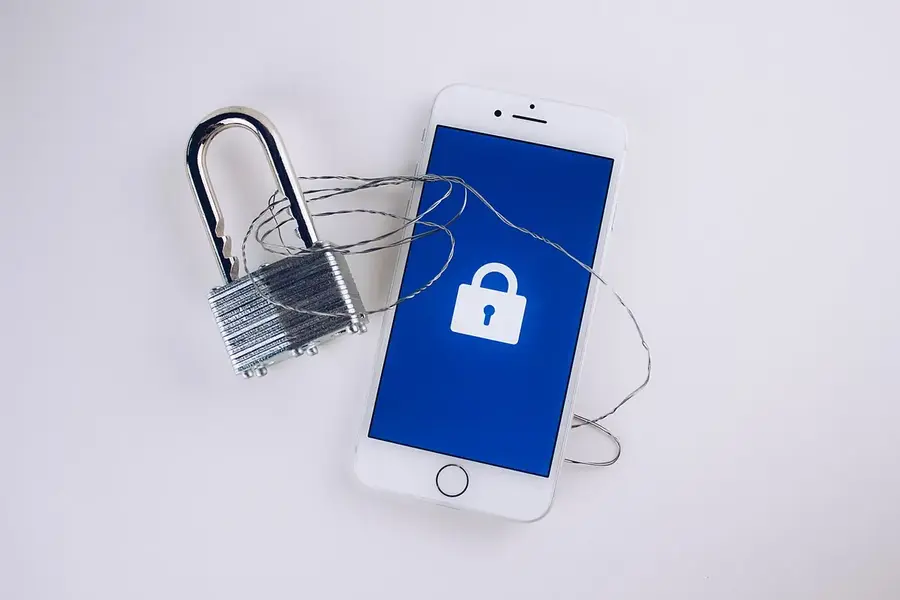
This track is digital-safety education for our global family: it explains common online risks and where official guidance and reporting channels can be found, using invented examples. Each lesson has six steps: learning goals, open reading, worked example, self-check, reflection and next step. All teaching text is original; the readings are free pages from the publishers named. The track is not accredited, awards no credential, and is not a substitute for professional advice or training. A suggested pace is one lesson per week, but you can go faster or slower.
Lesson 1 · Strong passwords and multi-factor authentication
Step 1 of 6 · Learning goals
- Explain why long, unique passwords matter and why reusing passwords is risky.
- Explain what multi-factor authentication (MFA) is and how it adds a second check.
- Describe what a password manager is for.
Step 2 of 6 · Open reading
Read these original publisher pages. They are free to read; we link to them and do not copy them.
- CISA: Use strong passwords
- CISA: Turn on MFA
- NCSC (UK): Three random words
- NCSC (UK): Password managers
- ENISA: Cyber hygiene
Step 3 of 6 · Worked example
Mara, an invented person, uses the same password on three sites. One of the sites suffers a data breach.
- Exposure: The breach reveals the password for that site.
- Spread: Criminals try the same email and password on other well-known sites. Because Mara reused it, two more accounts are at risk.
- What limits the damage: Unique passwords mean one breach does not unlock other accounts. MFA means a stolen password alone is not enough.
- Why length helps: Four random words from a list of 2,000 gives 2,0004 = 16,000,000,000,000 combinations. Predictable patterns, such as names and dates, shrink that number a lot.
- Where to read more: Official guidance is in the readings. Follow the instructions of your service provider or employer for your own accounts.
Mara and the breach are invented for teaching. This is general awareness, not a security review of any real account.
Step 4 of 6 · Self-check
Why is reusing one password on many sites risky?
Show a suggested answer
If any one site is breached, criminals can try the same password on other sites. Unique passwords keep a single breach from spreading.
Step 5 of 6 · Reflection
Which of your accounts would cause the most harm if someone else got into it? Keep your answer private.
Keep your notes private, on paper or on your own device. This site does not collect them.
Step 6 of 6 · Next
Lesson 2 · Phishing and scams
Step 1 of 6 · Learning goals
- Recognise common warning signs: urgency, requests for passwords or payment, odd sender addresses, and links that do not match the claimed organisation.
- Name common channels: email, text messages, phone calls and social media messages.
- Explain why contacting an organisation through details you already know is safer than using a message’s own links.
Step 2 of 6 · Open reading
Read these original publisher pages. They are free to read; we link to them and do not copy them.
- CISA: Recognize and report phishing
- NCSC (UK): Phishing scams, how to spot and report them
- ENISA: Awareness and cyber hygiene
- ReportFraud.ftc.gov · the US Federal Trade Commission’s reporting site
Step 3 of 6 · Worked example
An invented text message says: “Your parcel is on hold. Pay a small fee now at the link to release it.”
- Urgency: Pressure to act now.
- Money request: A small fee is a common way to collect card details.
- Unexpected: You may not be waiting for any parcel.
- Link: The link cannot be trusted just because the message looks official.
- Safer path: Contact the delivery company through its official app or website, typed or saved by you, not through the message. Then report the message through your national channel.
The message is invented for teaching. For practice, also try the site’s fraud recognition practice.
Step 4 of 6 · Self-check
Why is it safer to contact an organisation using details you already know?
Show a suggested answer
A message can imitate a real organisation, including its logo and tone. Details you already know come from outside the message and cannot be changed by a sender.
Step 5 of 6 · Reflection
Which kinds of scam messages have you or people you know received? What did they have in common?
Keep your notes private, on paper or on your own device. This site does not collect them.
Step 6 of 6 · Next
Next: Lesson 3 · Privacy settings.
Lesson 3 · Privacy settings
Step 1 of 6 · Learning goals
- Explain what kinds of information apps and websites may collect and why settings matter.
- Describe common kinds of settings: who can see what you post, location, contacts, camera and microphone access.
- Explain the idea of data minimisation: sharing only what is needed.
Step 2 of 6 · Open reading
Read these original publisher pages. They are free to read; we link to them and do not copy them.
- Internet Society: Control what you share
- NCSC (UK): Social media, protecting what you publish
- CISA: Cybersecurity best practices
- ENISA: Awareness and cyber hygiene
Step 3 of 6 · Worked example
An invented flashlight app asks for permission to read contacts, use the microphone and track location.
- Match permission to purpose: A flashlight needs the camera light. It has no obvious need for contacts or the microphone.
- Ask why: Extra permissions may collect data to sell or share.
- Review settings: Phones and apps have settings pages where permissions can be reviewed and changed.
- Limit what you publish: Photos and posts can reveal your home, school, routine or location.
- Read the policy: Privacy information from the app maker explains what it collects. This site’s own approach is on the privacy page.
The app is invented for teaching. This is general awareness, not an audit of any real app.
Step 4 of 6 · Self-check
What does “data minimisation” mean?
Show a suggested answer
Collecting and sharing only the information that is needed for a purpose, and no more.
Step 5 of 6 · Reflection
Which three pieces of information would you prefer never to publish publicly, and why?
Keep your notes private, on paper or on your own device. This site does not collect them.
Step 6 of 6 · Next
Lesson 4 · Safe devices and updates
Step 1 of 6 · Learning goals
- Explain why software updates matter: they fix known security weaknesses.
- Describe basic device protections that official guides describe, such as screen locks and backups.
- Explain why using official app stores and sources lowers risk.
Step 2 of 6 · Open reading
Read these original publisher pages. They are free to read; we link to them and do not copy them.
- CISA: Update software
- NCSC (UK): Securing your devices
- NCSC (UK): Device security guidance
- ENISA: Cyber hygiene
Step 3 of 6 · Worked example
A weakness is found in an invented phone system. The maker releases an update on 1 March.
- Before the update: Criminals can study the weakness and try to use it against phones that have not been updated.
- After the update: Phones that install the update are protected against that weakness.
- The gap: The longer an update is delayed, the longer a known weakness stays open.
- Other layers: Screen locks and backups reduce harm if a device is lost or fails.
- Sources: Official stores and the maker’s own update system are safer than files from unknown sites.
The system and the dates are invented for teaching.
Step 4 of 6 · Self-check
Why do updates matter for security?
Show a suggested answer
They fix weaknesses that are already known. Without them, those weaknesses stay open to anyone who tries to use them.
Step 5 of 6 · Reflection
Who in your household or workplace keeps devices updated? Is there someone who is likely to be missed?
Keep your notes private, on paper or on your own device. This site does not collect them.
Step 6 of 6 · Next
Lesson 5 · Protecting children online
Step 1 of 6 · Learning goals
- Describe in general terms the main online risks for children: contact with strangers, harmful content, bullying, scams and data collection.
- Explain that child online protection is shared among families, schools, platforms and governments.
- Know where to find international guidelines and, if a child is at risk, to contact local authorities.
Step 2 of 6 · Open reading
Read these original publisher pages. They are free to read; we link to them and do not copy them.
- ITU: Child Online Protection guidelines
- ITU: Child Online Protection initiative
- UNICEF: Keeping children safe online
- NCSC (UK): Advice for individuals and families
Step 3 of 6 · Worked example
An invented school wants to teach online safety to children aged 10 to 12.
- Start with the people involved: Children, parents or carers, teachers and the platforms children use.
- Age-appropriate information: Explain risks in language suited to the age group.
- Open conversation: Children are more likely to ask for help when they do not fear punishment for telling.
- Tools and settings: Platform and device features can limit contact and content. The guidelines explain these in more detail.
- Know where to go: Families and schools should know local child-protection and reporting contacts.
The school is invented for teaching. This lesson is general education and is not guidance for any particular child or family. If a child is in immediate danger, contact your local emergency services. See also the ethics and safeguarding page.
Step 4 of 6 · Self-check
Who shares responsibility for protecting children online?
Show a suggested answer
Families, schools, online platforms, governments and children themselves all play a part. International guidelines address each group.
Step 5 of 6 · Reflection
What local services could a family or school contact about a child-safety concern, and how would they find them?
Keep your notes private, on paper or on your own device. This site does not collect them.
Step 6 of 6 · Next
Lesson 6 · Reporting cybercrime
Step 1 of 6 · Learning goals
- Explain why reporting helps: it creates a record, can help others and may help recovery.
- Understand that reporting channels differ by country and examples are not a complete list.
- Name the kinds of information that are useful to keep when something happens.
Step 2 of 6 · Open reading
Read these original publisher pages. They are free to read; we link to them and do not copy them.
- CISA: Report a cyber issue (United States)
- FBI Internet Crime Complaint Center (United States)
- ReportFraud.ftc.gov (United States)
- Action Fraud (United Kingdom)
- Europol: Report cybercrime online · information for the European Union
Step 3 of 6 · Worked example
An invented person receives a call from someone claiming to be from a bank and asking for a one-time code.
- Stop the contact: End the call. Real organisations do not need your one-time codes.
- Keep details: Note the number, time and what was said. Take screenshots of messages.
- Contact the real organisation: Use the number printed on a card or in the official app.
- Report: Use the reporting channel for your country or contact local police.
- If in danger: If anyone is in immediate danger, contact local emergency services.
The caller and the person are invented for teaching. The Pledge does not take reports; see where to report concerns about this site.
Step 4 of 6 · Self-check
Why is it useful to keep dates, numbers and screenshots?
Show a suggested answer
They help the organisation and the authorities understand what happened, and they help you describe it clearly.
Step 5 of 6 · Reflection
Find the cybercrime reporting channel for your country and note it somewhere safe. Keep your notes private.
Keep your notes private, on paper or on your own device. This site does not collect them.
Step 6 of 6 · Next
You have reached the end of the track. Return to the Civic literacy track, read Unit 15: Digital Media & Responsible AI, see the Stay safe page, or review Lesson 1.